Scan. Review. You’re in.
Add an account with a QR scan, an image, or a setup key. Review the details before they enter your vault.
Camera, gallery, or manual entryPRIVATE. OFFLINE. YOURS.
A quieter home for your two-factor codes. Keep them on your device, protect them your way, and sign in with confidence.
AUTHORA ON iOS
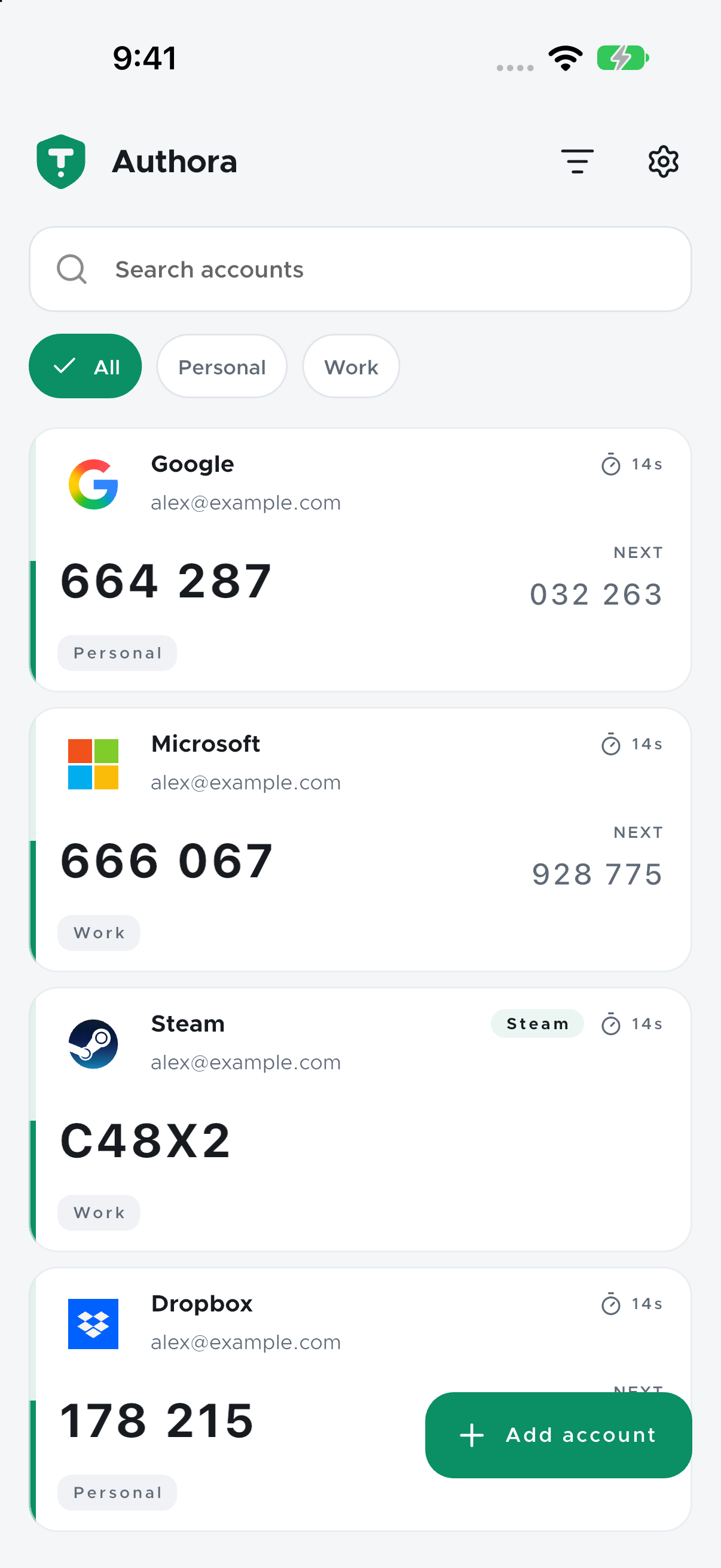
Real iOS app. Demonstration accounts only.
LESS FRICTION. MORE FOCUS.
Your authenticator should make signing in simpler. Authora keeps the useful things close and the distractions out.
Add an account with a QR scan, an image, or a setup key. Review the details before they enter your vault.
Camera, gallery, or manual entryUse biometrics, an app PIN, or both. If biometrics aren’t convenient, your enabled PIN is there as a fallback.
Biometrics, PIN, or bothExport a password-encrypted .authora backup. Import it on your next device and review the accounts before restoring.
Search accounts, organize with tags, and choose a list or grid. Accidentally removed an account? Restore it from Trash.
Search, tags, and recoverable TrashLight or dark. Your favorite accent. English or Nepali. Hide codes when you need a little more privacy.
Light, dark, English, and NepaliTHE REAL THING
Captured from Authora running in the iOS simulator. The accounts shown use public demonstration keys.
Swipe or tap to explore
A focused account list with tags and next-code previews.
Independent biometric and PIN controls, with privacy options close by.
Encrypted backups and an import flow that lets you review before restoring.
A SMALL APP. A CLEAR BOUNDARY.
Authora generates codes on your device. There’s no Authora account, cloud vault, or background sync standing between you and your sign-in.
See exactly how privacy worksYour vault password protects the key to your account data. On Android and iOS, the account database is encrypted.
Codes, QR processing, and your vault work locally. Optional service icons are off by default and contact a third party only when enabled.
Enable app lock, hide visible codes, and use supported screen-privacy controls. You decide what opening the app requires.
A SIMPLE START
Set up once. Then your codes are right where you expect them.
Choose a vault password and the unlock method that works for you. Keep your password somewhere safe.
Scan a provider’s enrollment QR code or import an Authora backup. Check the details before saving.
Open Authora when you need a code. Back up your vault before moving to a new device.
GOOD QUESTIONS
Know what you’re trusting, before you trust it.
No Authora account is needed. Code generation and account storage work offline. Optional online service icons need a network connection; they are off by default.
Authora supports TOTP, HOTP, Steam Guard login codes, mOTP, and compatible Yandex Key accounts. Steam trade and market confirmations are not supported. Your provider must support the account type you enroll.
Yes. With both enabled, Authora tries biometrics first. Cancel the biometric prompt and choose your PIN when you need it. You can change either method in Settings → Security.
There is no password-reset service that can recover your encrypted vault or backup. Keep your password, a current encrypted backup, and your providers’ recovery codes somewhere safe.
Authora has no cloud-sync or analytics service. If you enable online icons, the icon provider receives the requested service name and your IP address, but not your enrollment key or generated code. Read the privacy policy for the full details.
KEEP WHAT’S IMPORTANT CLOSE
Authora is built for Android. iOS and macOS are coming soon.
Open source. Explore the code, report an issue, or contribute.
View source on GitHubOfficial download links will be added when Authora is published.
Read the privacy policyCOMMUNITY SUPPORTED
Authora is open source. Donations will help fund an Apple Developer account and support the iOS and macOS releases.
Donation link coming soon.